Description
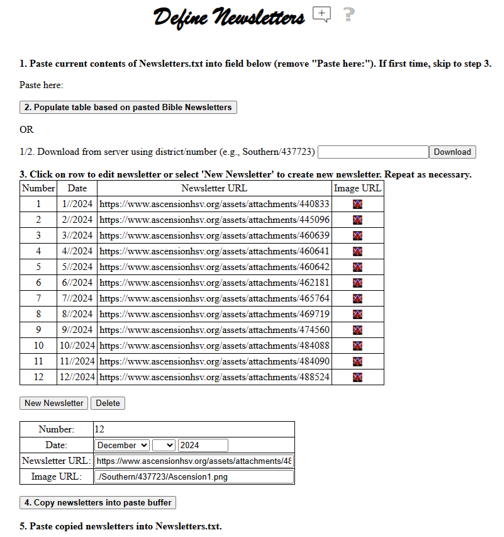
The "Define Newsletters" webpage is used to define the online newsletters for a specific church such that a user of that church's Hub homepage can access those newsletters. The newsletters defined via this website should be saved in a Newsletters.txt file (process is described later) that should be included with the other church files sent when the specific church's definitions have been completed.
If this webpage is used to define the newsletters for the church, then the newsletters input field on the Define General Info webpage should be set to use the Hub link (as opposed to another link on that church's website for accessing the newsletters).
The user of the church's Hub webpages will see the newsletters in a table showing the basic information from the "Define Newsletters" webpage (with fewer columns).

If newsletters are defined using this webpage and the newsletters input field on the Define General Info webpage is set to use the Hub link, then the newsletters image will be added to the Extended column on the Church Information webpage allowing direct access from that webpage to the newsletters.
Procedure
The process for creating, populating and persisting the newsletter information involves the following steps:
The first time this webpage is accessed, since there is no previously saved Newsletters.txt file and since the default seeded files for the church do not include Newsletters.txt, steps 1 and 2 can be skipped and the process should begin with step 3 (defining a new newsletter)
If the newsletters have previously been saved to a local Newsletters.txt file, then the contents of that file should be copied and pasted into the "Paste here:" field overwriting the "Paste here:" text (step 1) and then clicking the "Populate table based on pasted newsletters" (step 2)
If the newsletters have previously been loaded to the server, then, as an alternative to the previous bullet, the contents of the Newsletters.txt file on the server can be accessed by specifying the folder (e.g., Southern/437723) and then selecting the Download button
As step 3, new entries can be added to the table by clicking the "New Newsletter" button and filling in the input fields for that newsletter. This process should be repeated for each newsletter to be added
When all the newsletter entries have been added, the newsletter information should be copied to the clipboard using the "Copy newsletters into paste buffer" button
The clipboard contents should be pasted into a local Newsletters.txt file that will ultimately be included with the set of delivered files
Creating and Editing Entries
The "New Newsletter" button creates a new newsletter and populates it with default values. These values can then be modified as desired using the input fields at the bottom.
Clicking a cell in a row of the table will populate the input fields at the bottom, allowing that entry to be edited as desired.
Input Fields:
Number: System assigned number for the newsletter.
Date: Month, day and year of the newsletter
Newsletter URL: URL for the newsletter. This presumes that the newsletter is available online. At some time in the future, the Lutheran Hub might allow for newsletters to be uploaded to the church's Hub directory.
Image URL: URL for the hyperlinked image that appears after the date on the end user webpage for the newsletter information. Normally, this file will be included with those sent for the church and should be identified with "./folder/filename" (e.g., ./Southern/437723/Ascension1.png).
Saving newsletters to Newsletters.txt
The "Copy newsletters into paste buffer" command button should be used to copy the newsletters defined on this webpage into the paste buffer (clipboard). Once copied, the newsletters should be pasted into a local Newsletters.txt file that should then be included with the files sent when the church definition is complete.